
Visitors
The Visitors section lets you manage all visitor and student records in the system.
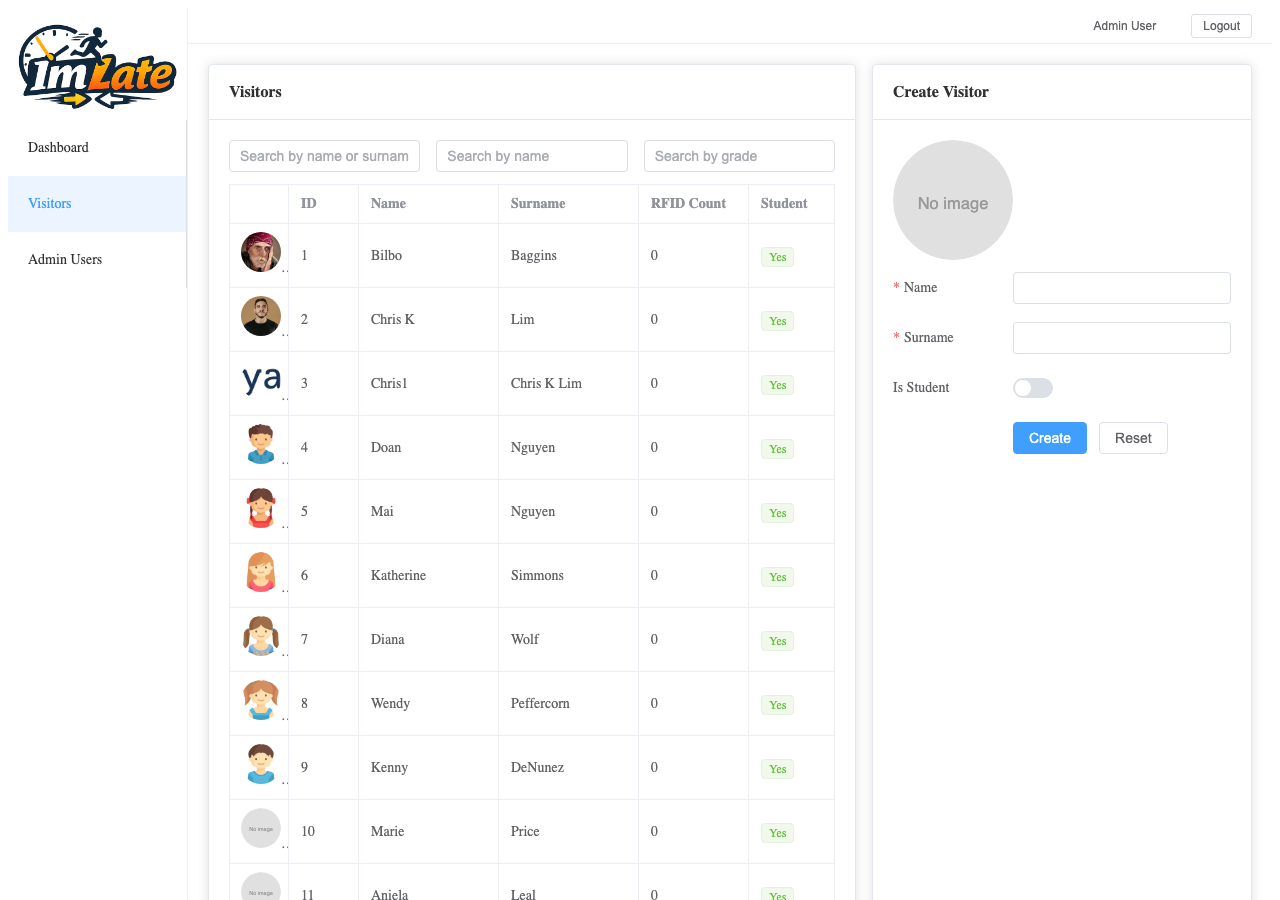
Visitor List
The main view shows a table with all registered visitors:
| Column | Description |
|---|---|
| ID | Unique identifier |
| Avatar | Visitor's photo (if uploaded) |
| Name | First name |
| Surname | Last name |
| RFID Count | Number of RFID keys linked |
| Student | Yes or No |
| Grade | Grade/year group (for students) |
| Updated | Last update timestamp |
Searching
Use the search fields above the table to filter visitors by name, surname, or grade.
Creating a Visitor
1
Click "Create" or use the form on the right side. The creation form appears with empty fields.
2
Fill in the required fields:
- Name — visitor's first name
- Surname — visitor's last name
- Is Student — toggle on if this is a student
- Grade — enter the grade (only shown when "Is Student" is on)
3
Click "Save". The new visitor appears in the table.
Editing a Visitor
Click on a visitor row in the table to load their details into the form. Make your changes and click Save.
WARNING
ERP-synced visitors are read-only. If a visitor was imported from iSAMS (has an iSAMS ID), their profile fields — name, surname, year group, school ID — cannot be edited in ImLate. iSAMS is the single source of truth for these records. Only RFID keys and photos can be managed locally. To change a synced visitor's data, update it in iSAMS first; the changes will propagate on the next sync cycle.
RFID Keys
Each visitor can have one or more RFID keys. To manage keys:
Adding a Key
- Select a visitor from the table.
- In the visitor's detail section, find the RFID Keys area.
- Enter the new key ID and click Add.
Removing a Key
Click the delete button next to the key you want to remove.
WARNING
Removing an RFID key means the visitor can no longer sign in with that key. Make sure they have another key or use Manual Tracking from the admin panel.
Visitor Photo
You can upload or change a visitor's photo:
- Select the visitor.
- Click on the avatar or the Upload Image button.
- Select an image file (max 5 MB).
- The photo will appear on the RFID reader screen when the visitor signs in.
Deleting a Visitor
- Select the visitor from the table.
- Click the Delete button.
- Confirm the deletion in the dialog.
WARNING
Deleting a visitor removes their record and unlinks all RFID keys. This action uses soft delete — the record is marked as deleted but not physically removed from the database.