
Profile
The Profile page shows your account details and lets you change your password.
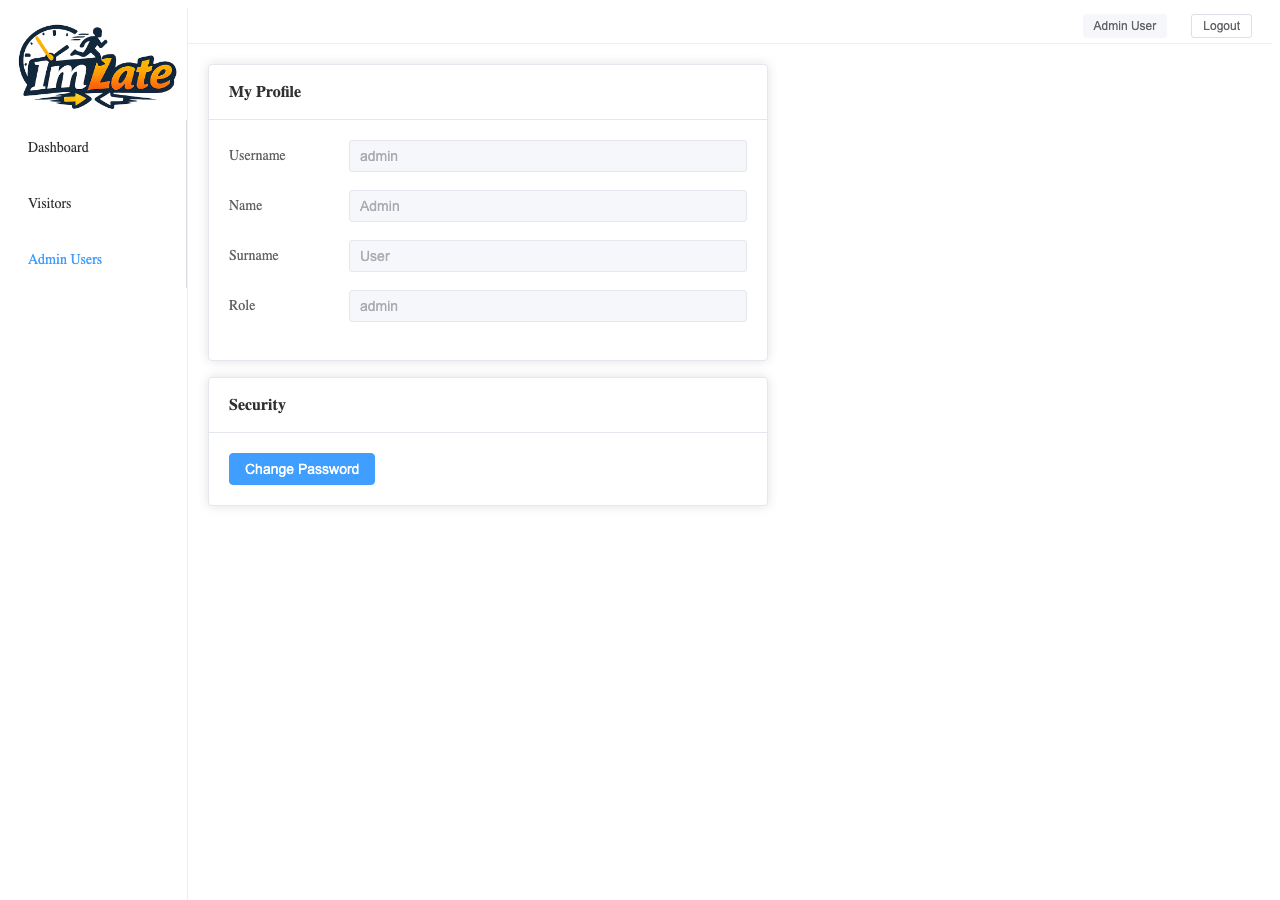
Viewing Your Profile
Click your username in the top-right corner of the admin panel to open the Profile page.
Your profile displays:
| Field | Description |
|---|---|
| Username | Your login name (read-only) |
| Name | Your first name (read-only) |
| Surname | Your last name (read-only) |
| Role | Your role: admin or terminal (read-only) |
INFO
Profile fields other than the password are read-only. Contact another administrator if you need to update your name or other details.
Changing Your Password
1
Open the Profile page by clicking your username in the header.
2
Enter your new password in the "New Password" field. The password must be at least 6 characters long.
3
Confirm the password by typing it again in the "Confirm Password" field.
4
Click "Change Password". A success message confirms the change. Your next login will use the new password.
TIP
If you forget your password, another administrator can reset it from the Admin Users section.